The following texts were partially or completely generated with the help of generative AI models.
Caution with Ionos
At very short notice (July 29, 2024) I received a message that my server would be shut down on August 31, 2024. So this happens with exactly 1 month's notice and right in the middle of the summer holidays, when no one has time to deal with it.
- The deadline is far too short - for a hosting provider, this is utterly unprofessional
- The communication is really bad: "We thank you for your trust and apologize for any inconvenience."
- No, I no longer have any trust in this company.
- Every affected customer will experience major inconvenience because of this.
Support can't do anything, that's just how it is. A nice person, but one who can't change anything about it.
In that case, I'd rather go with Amazon on AWS. At least they are better in terms of communication and reliability.
Your own HANA Express installation is the easiest option now that SAP no longer provides its HANA Express (HXE) images for the hyperscalers. I created my own HXE installation (database server only) on a virtual server at IONOS. It takes longer, but especially for a server that you want to run around the clock, at €200-300 per year it is actually much cheaper.
Important: Only binary installation of HANA Express, database server only
Here I only describe the binary installation of HANA Express, database server only. This means that the XS Advanced application server and applications such as the Web IDE and the SAP HANA Cockpit are "missing." For learning SQLScript and working with the system using Eclipse, this is perfectly sufficient. Anyone who wants to develop web applications has to install more files at the relevant point. And the VM installation variant is a bit simpler.1
This guide invites everyone who doesn't feel like dealing with all the details themselves to follow along. Since I am not a Basis administrator or a Linux expert, I cannot guarantee that my approach is the best one, that the system is configured optimally, or that I am using the cheapest hosting provider. But what I can say with certainty is this: if you follow the description, you will get a working SAP HANA database with little effort.
This is the way... to your own HANA Express installation
I only describe what I did. In doing so, I will not go into all the other possible scenarios and constellations. This makes the guide leaner and allows it to be reproduced 1:1. Whether this fits you and your scenario can easily be seen from the following list. Here are the most important cornerstones of the guide.
- Booking a virtual server: why I chose IONOS and not one of the hyperscalers
- Deploying an OpenSuse Leap 15 Linux image
- Installing the necessary prerequisites (Java, libraries)
- Assigning a sub-domain so that the server can be reached at, for example, hana.brandeis.de
- Installing and running the HANA Downloader
- Installing HANA Express (database server only)
- Necessary port openings in the firewall
- Setting up the system in Eclipse
- Starting and stopping the system
No Linux details are discussed, i.e. if you deviate from this, you should know what you are doing. I have linked the necessary documentation at each point, but that is then no longer my way.
Prerequisites and software
- Basic knowledge of Linux and of operating an FTP client and an SSH terminal
- 1 server, requirements see below
- SSH terminal, e.g. PuTTY
- FTP program, e.g. FileZilla
Why a classic web host and not a hyperscaler?
First, I would like to describe my requirements profile.
- The SAP HANA should be reachable around the clock. When I was still doing my training courses all by myself, this didn't matter. I could simply start the system quickly in the CAL and get going after fetching a coffee. When there are three of you, this no longer works so easily. So the box should run around the clock.
- Access should be primarily via Eclipse. That is, the SQL console and the plain XSC Calculation Views are enough for me. That is sufficient for BW consultants. Nevertheless, XSA should in principle run on the system so that one can occasionally demonstrate the WebIDE.
- During training courses, up to 20 participants should be able to work simultaneously, however with a very manageable data volume: the demo data model for the book SQLScript for SAP HANA. Access here is only via the SQL console.
- A regular backup is not necessary. But perhaps saving individual system states as images, in order to always restore the same state before training courses.
- The system should not physically stand in my office. I don't want even more hardware lying around there. And since my training participants access it, the internet connection should be as fast as possible.
In 2020 I had already operated a virtual server for a conference system at IONOS and was very satisfied with it. That's why I also looked there for the new home for my HXE. As far as I understand the price lists of Google Cloud Platform (GCP), Amazon AWS, and Microsoft Azure, they are not cheaper.2
For a HANA Express installation with only the database and without XSA applications, SAP recommends a minimum of 2 cores and 8 GB RAM. For the somewhat larger package VPS XL RAM with 6 vCores, 18 GB RAM, and 160 GB SSD, IONOS charges €162 in the first year and €288 for each additional year. That seems relatively cheap to me. But I am sure that other hosts also have inexpensive virtual servers in this size range. Of course I could also have chosen a server one size smaller, but during training courses it should not buckle.
Another aspect in the decision for a "smaller" host3
Deploying the Linux image
When you book a vServer, you can very easily install different operating systems there. I choose OpenSuse Leap 15. It is not on the list of recommended Linux variants, but it is available at my host and I don't have to install Linux myself.
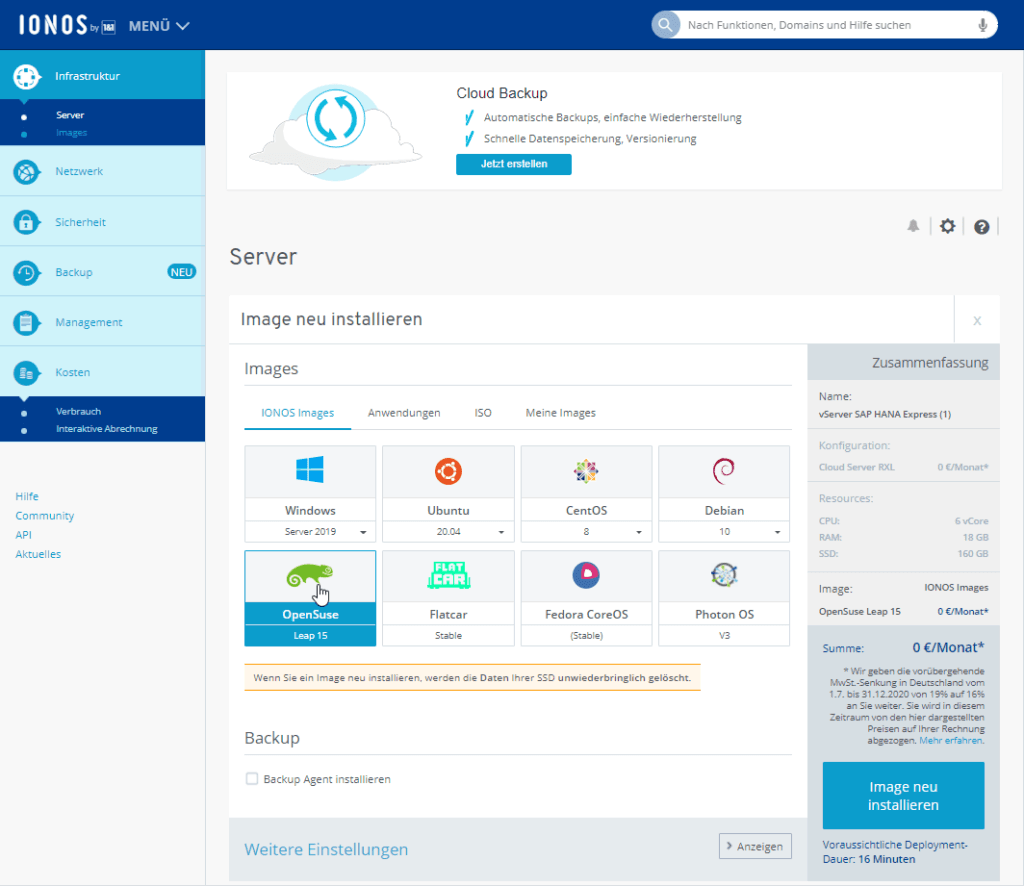
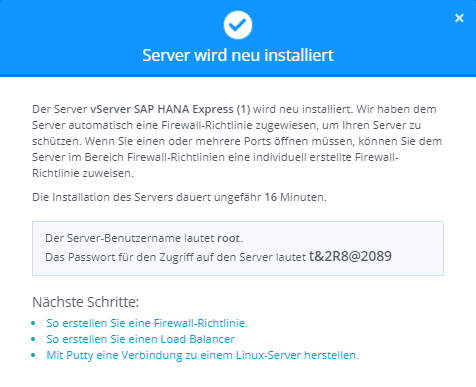
I turn off the Backup Agent because it incurs additional costs. For me, a clean image after installation is more important than a permanent backup. A pop-up with the server's password is displayed. Needless to say, you really have to remember it well. Otherwise you won't get onto the machine anymore.
Preparing the operating system
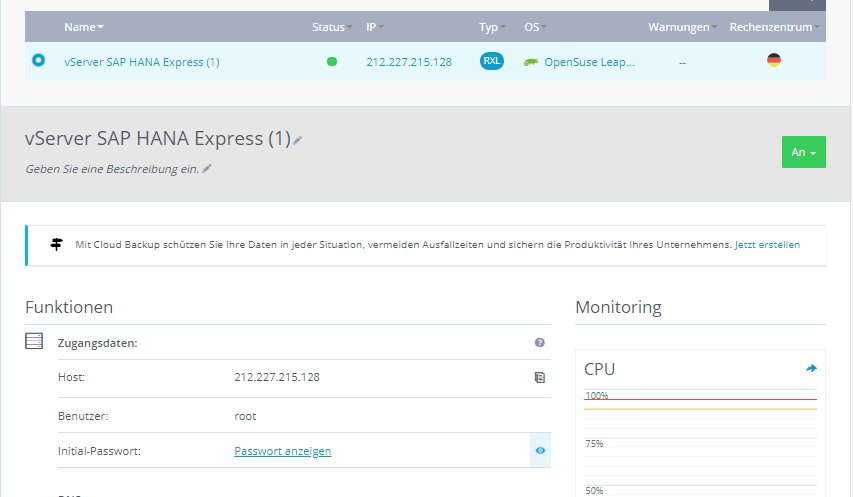
After installing the operating system, we have to connect to the console as root and install a few things there. For this I use the free SSH client PuTTY 4. I find the connection parameters on the server overview:
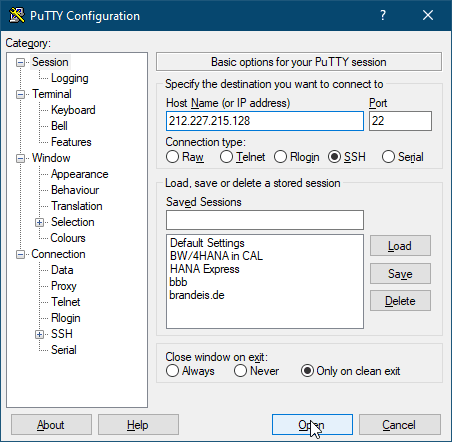
So we start PuTTY and connect to the IP address:
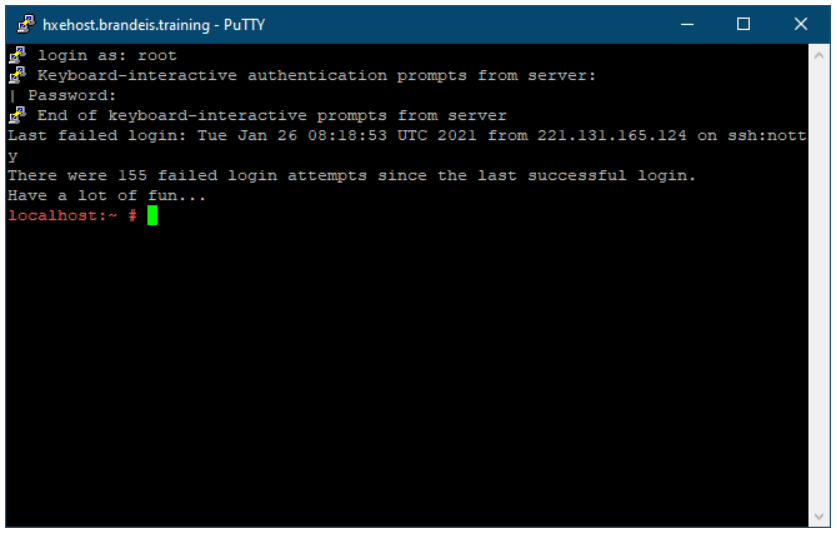
There we log in with the username root and the password:
A note about the console
Most people will already know this, but in the console there is always a prompt on the left. It contains many valuable hints about the context. This is especially important with a guide like this one.
For example, the prompt localhost:~ # tells the following: You are logged on to the server named localhost with a privileged user (#) and you are in that user's home directory.
Further down, for example, the prompt hana:/hana # appears. So the system now has the name hana and we are in the directory /hana.
Installing Java and a few libraries
Once we are connected, the necessary components are now installed. We do this with the ZYPPER package manager. Please enter the following lines one at a time, one after the other, in the console. All questions asked during this must be confirmed with Y.
localhost:~ # zypper install java-11-openjdk
localhost:~ # zypper install insserv
localhost:~ # zypper install libatomic1
localhost:~ # zypper install libnuma1
localhost:~ # zypper install numactl
localhost:~ # zypper install libltdl7
or all together at once:
localhost:~ # zypper install java-11-openjdk insserv libatomic1 libnuma1 numactl
If something is forgotten here, then it will subsequently lead to errors during the installation of HANA Express that you have to laboriously dig out of the logs.
Assigning a hostname and domain
This step is optional. Anyone who skips it can only access their SAP HANA Express installation via the IP address.
Since I want to reach my server via a fixed hostname such as hana.brandeis.de, I have to take a few extra steps. First, I have to assign a sub-domain to my domain brandeis.de with the following A record in the DNS settings:
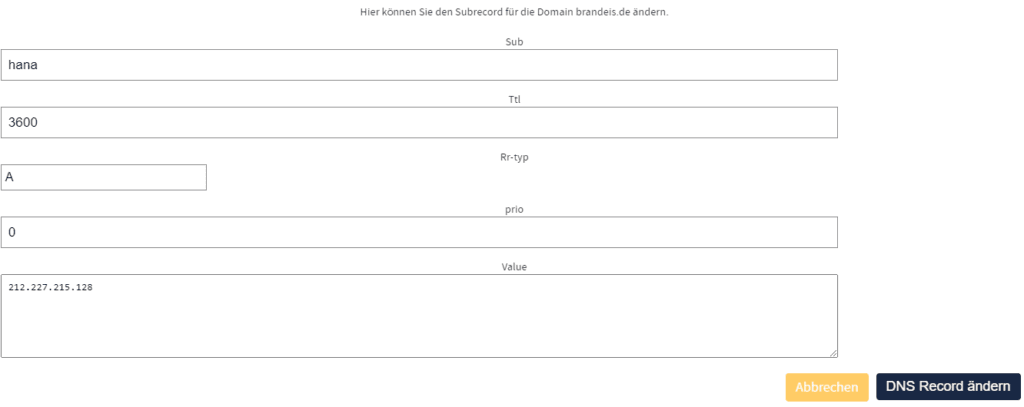
And now I still have to tell the server to listen to the name hana.brandeis.de. To do this, I have to make two changes in configuration files. In the file
/etc/hostnamethe new hostnamehanamust be written. And in/etc/hostsan entry for hana.brandeis.de must be added:
212.227.215.128 hana.brandeis.de hana
Since I don't really like working with the Linux console text editors, however, I download the files via FTP and upload them again. To do this, I connect via IP with the username root and my password via FTP to the server. As my FTP client, I use the free FileZilla5:
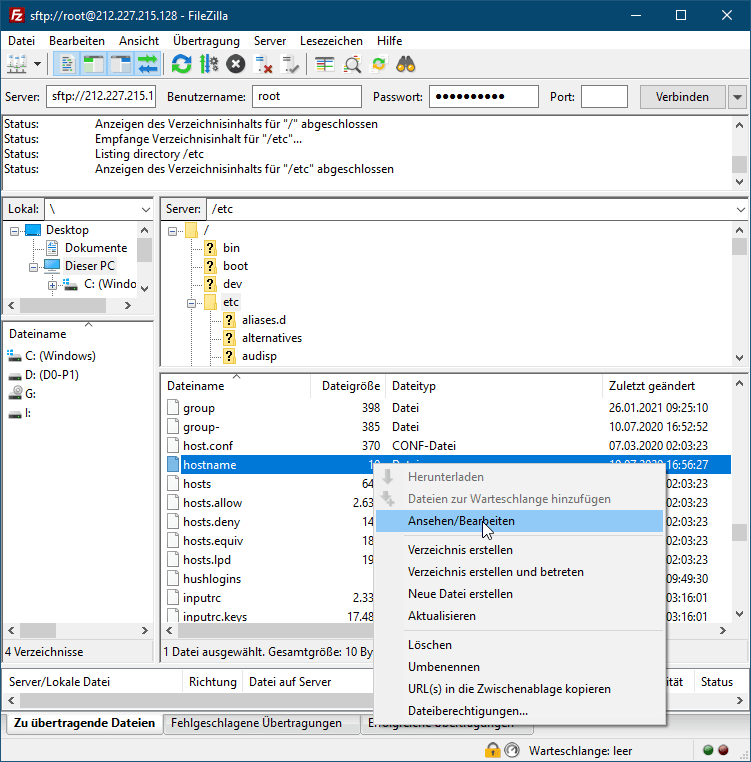
This way I can conveniently edit and save the files in my familiar Notepad++ (or the normal Notepad).
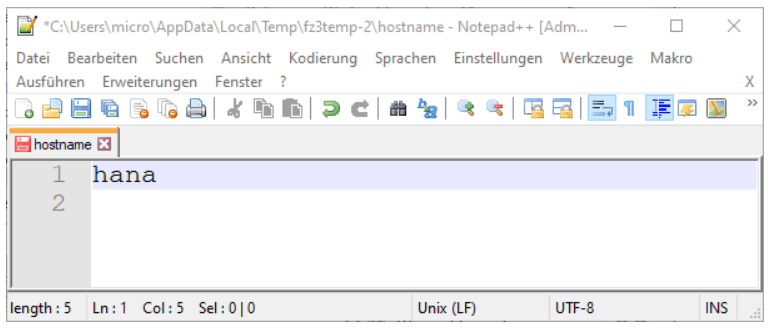
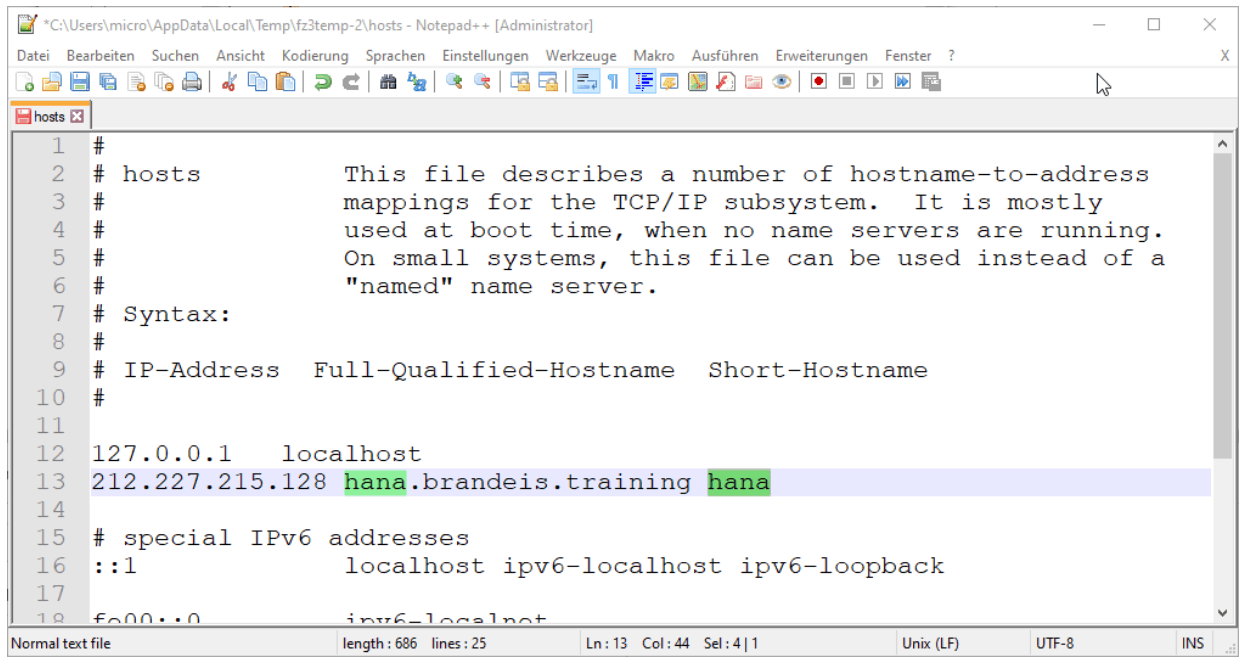
After editing, the files must each be saved, closed, and uploaded. For the two settings to take effect, the server must now be restarted. We achieve this in the console by entering
reboot
Installing and running the HANA Download Manager
To download the HANA Download Manager, you first have to register on this page https://www.sap.com/cmp/td/sap-hana-express-edition.html. After that, you can download the Download Manager. I opted for the Platform-Independent variant:
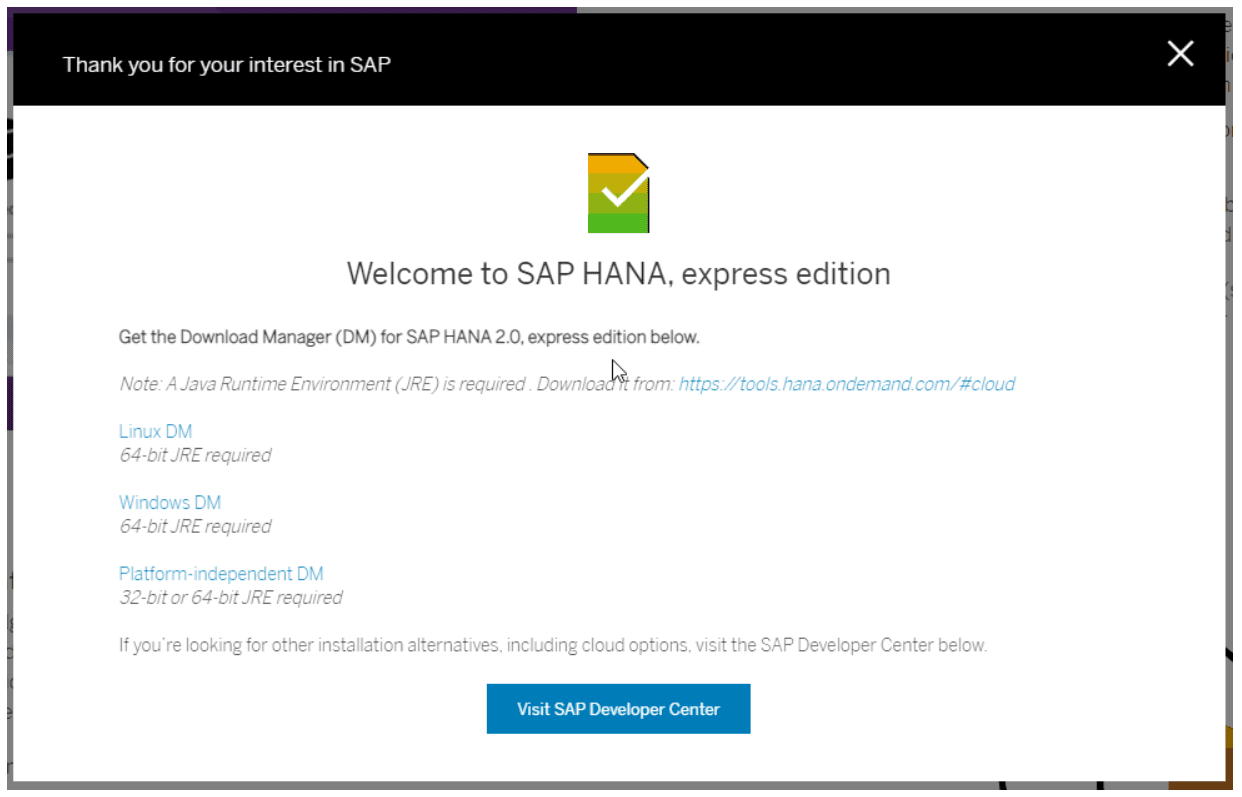
I then uploaded the DM via FTP into the directory /root:
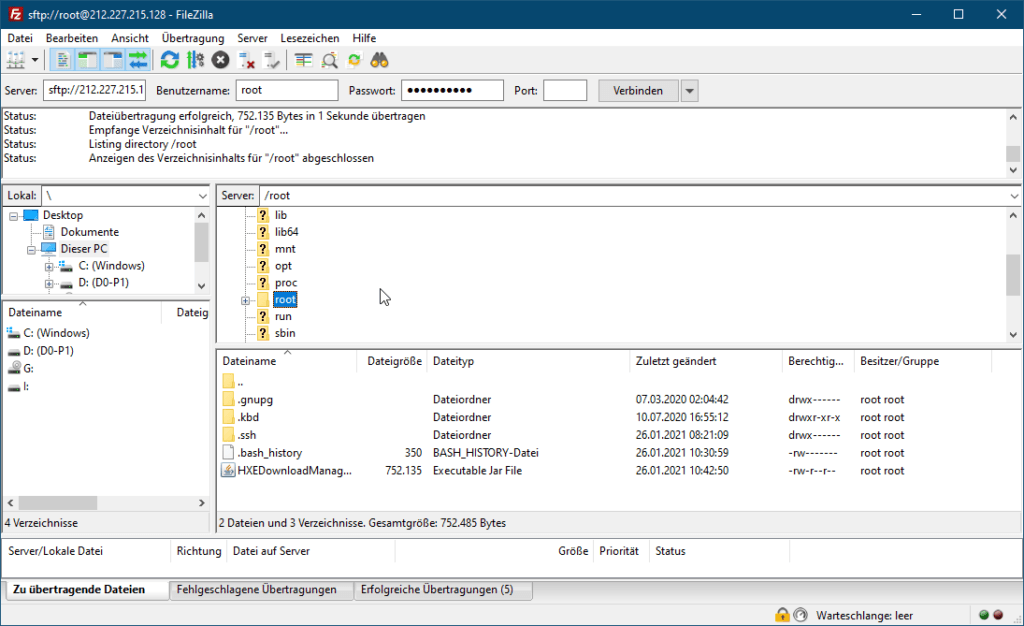
After that, reconnect with PuTTY. Now the new hostname (in my case hana) should also be displayed: It is important that we are in the /root directory. There a new directory /root/Downloads is first created and then the DM is started with the appropriate parameters:
hana:~ # mkdir Downloads
hana:~ # java -jar HXEDownloadManager.jar linuxx86_64 installer Getting_Started_HANAexpress_Binary_Installer.pdf hxe.tgz
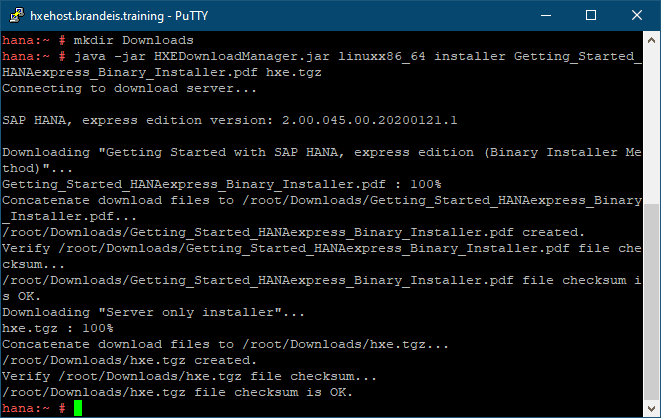
Console after the successful download
Starting the HANA Express installation
Navigate into the root directory and create a new subdirectory /hana:
hana:~ # cd ..
hana:/ # mkdir hana
hana:/ # cd hana
There then unpack the files:
hana:/hana # tar -xvzf /root/Downloads/hxe.tgz
And now the installation is carried out:
hana:/hana # ./setup_hxe.sh
During this, all sorts of questions are asked, whose default values we can simply accept with Enter or adjust to our liking. Here I make the following changes:
- As the system ID I choose DEV, so that I can distinguish the system from other HANA Express systems in Eclipse.
- As the instance number I choose 00. This is later reflected in the ports, where the 2nd and 3rd digits are the instance number.
- We have to remember the password well again, because it is also used for the HANA default users.
hana:/hana # ./setup_hxe.sh
Enter HANA, express edition installer root directory:
    Hint: <extracted_path>/HANA_EXPRESS_20
HANA, express edition installer root directory [/hana/HANA_EXPRESS_20]:

The SAP HANA system ID (SID) is three uppercase alphanumeric characters to identify the SAP HANA system.

Enter SAP HANA system ID [HXE]: DEV

An instance number is a two-digit numeric identifier for the SAP HANA instance.

Enter instance number [90]: 00

Enter local host name [hana.brandeis.training]:

Password must be at least 8 characters in length.  It must contain at least
1 uppercase letter, 1 lowercase letter, and 1 number.  Special characters
are allowed, except  (backslash), ' (single quote), " (double quotes),
` (backtick), and $ (dollar sign).

Enter HDB master password:
Confirm "HDB master" password:

##############################################################################
# Summary before execution                                                   #
##############################################################################
HANA, express edition installer : /hana/HANA_EXPRESS_20
  Component(s) to install                   : HANA server, Application Function Library, SAP HANA EPM-MDS
  Host name                                 : hana.brandeis.training
  HANA system ID                            : DEV
  HANA instance number                      : 00
  Master password                           : ********
  Log file                                  : /var/tmp/setup_hxe_2021-01-26_11.10.33.log

Proceed with installation? (Y/N) : Y
Necessary port openings in the firewall
While the installation is running, we can take care of opening the ports. The necessary HANA-specific ports are:
- 3<NN>15 - SQL/MDX access for the first tenant database
- 3<NN>13 - SQL/MDX access to the system database
- 5<NN>13 to 5<\NN>14 - Instance Agent
In this list, \<NN\> stands for the instance number. In my example 00, but the default value 90 is also often chosen. You can find all ports for SAP HANA on this page, where you should also restrict to the product SAP HANA Platform.
At IONOS, the port configuration then looks like this:
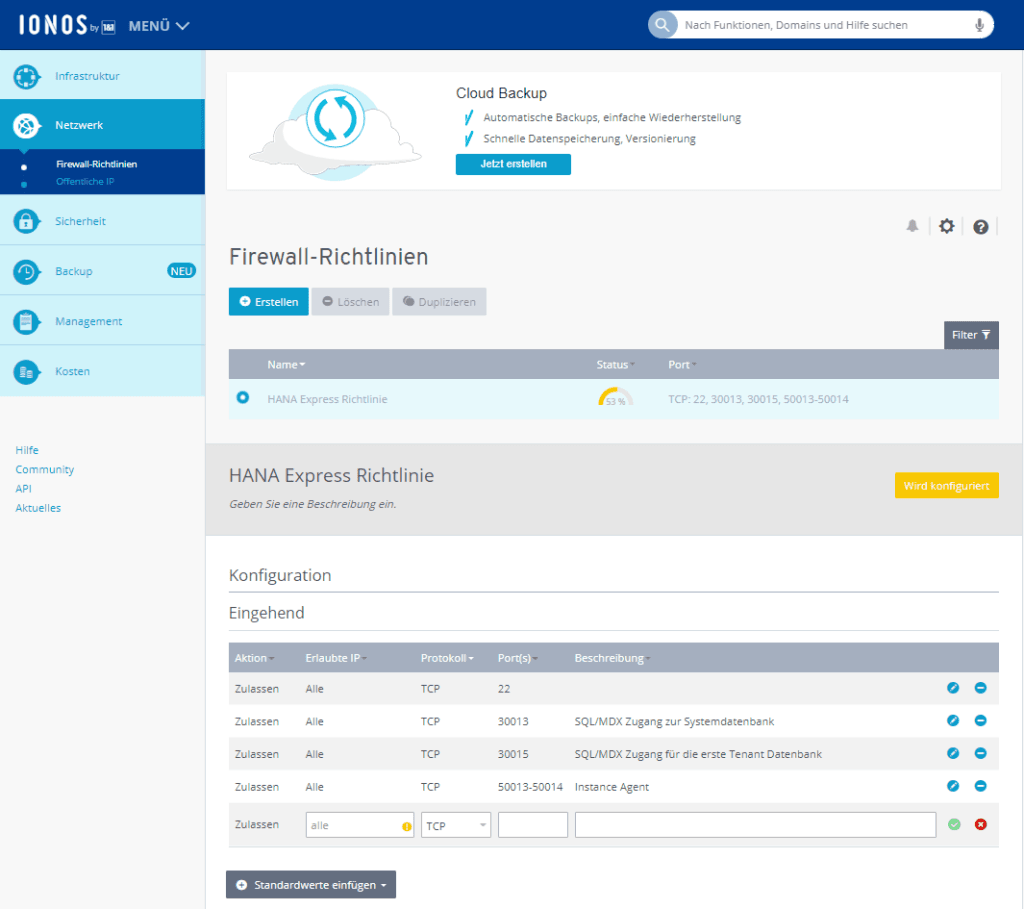
By the way, it takes a few minutes until the ports are really accessible at IONOS. Please pay attention to the status: only when it says "Active" instead of "Being configured" is it finished.
Setting up the system in Eclipse
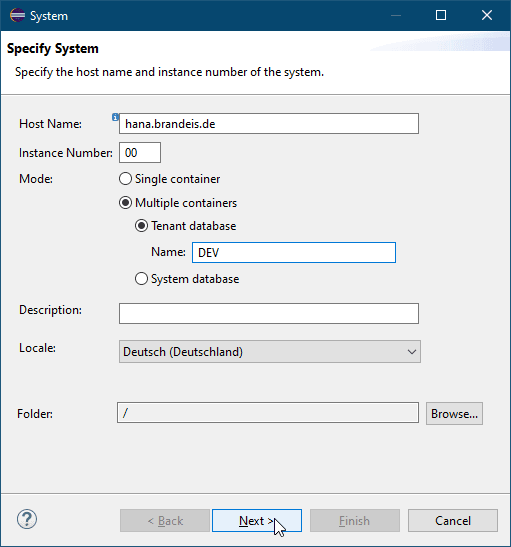
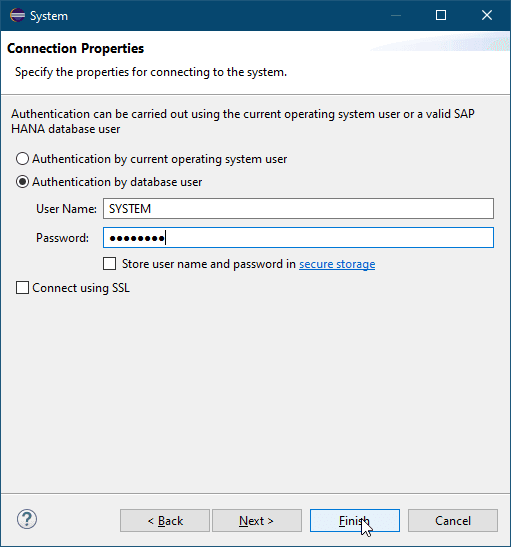
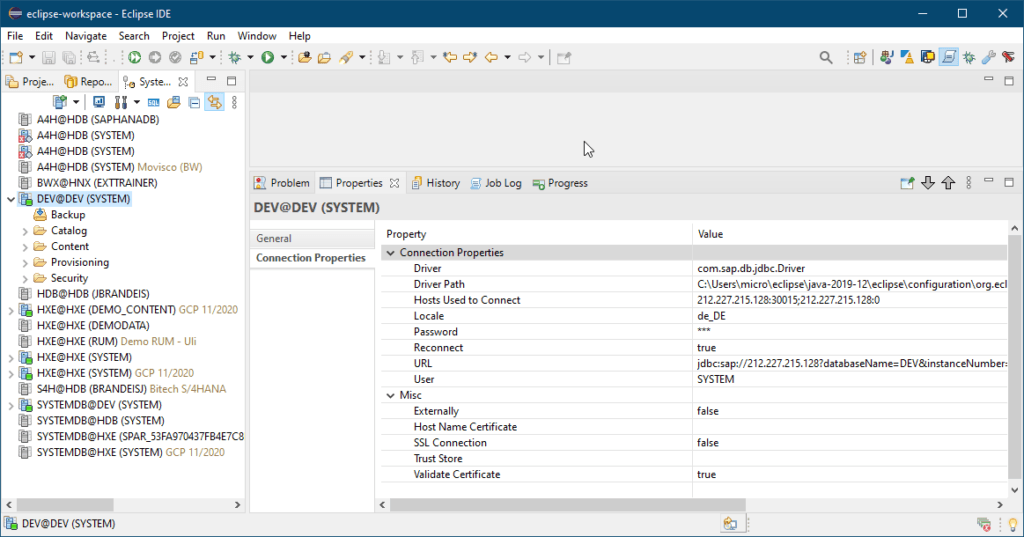
Once the installation is complete and the ports have been opened, we can connect with Eclipse. The installation procedure has already created a tenant database for us with the name of the system ID. In my case, that is DEV:
Starting and stopping the system
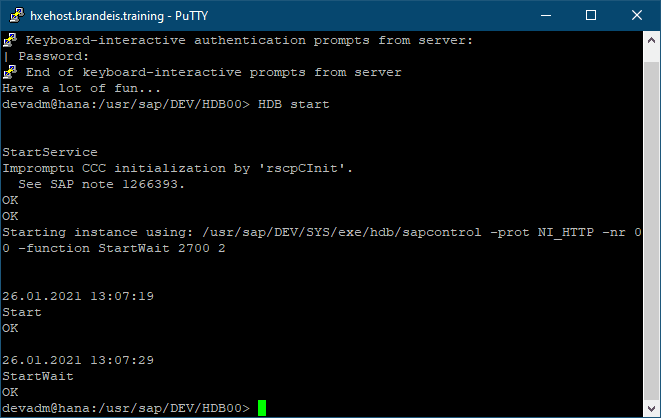
The system is designed to run around the clock. If it should ever be stopped, e.g. for an offline backup, or started up after a server restart, then we have to log in with the user \<sid\>adm, so in my case with devadm. To start the system, we enter HDB start:
And to stop it, correspondingly HDB stop.
Once everything is running, I recommend creating an image. This lets you restore the same system state after installation again and again.
Changes for the XSA installation
If you want to install XSA as well, you need more packages and more memory. If necessary, increase the SWAP, see the next section.
localhost:~ # java -jar HXEDownloadManager.jar linuxx86_64 installer hxe.tgz hxexsa.tgz shine.tgz eml.tgz apl.tgz sdi.tgz dpagent_linux_x86_64.tgz
Addendum, in case the memory is not enough
For the XSA version, SAP recommends that, with less than 24 GB RAM, you additionally extend the swap area to 32 GB. This is relatively easy as long as you use a swap file.
hana:~ # swapon --show
NAME      TYPE      SIZE USED PRIO
/dev/dm-0 partition   2G   0B   -2

hana:~ # sudo lsblk
NAME                  MAJ:MIN RM   SIZE RO TYPE MOUNTPOINT
sda                     8:0    0   160G  0 disk
├─sda1                  8:1    0   512M  0 part /boot
└─sda2                  8:2    0 159.5G  0 part
  ├─vgopensuse-lvswap 254:0    0     2G  0 lvm  [SWAP]
  └─vgopensuse-lvroot 254:1    0 157.5G  0 lvm  /
sr0                    11:0    1  1024M  0 rom

hana:~ # free -m
              total        used        free      shared  buff/cache   available
Mem:          17962        6045       10160         117        1755       11517
Swap:          2047           0        2047

hana:~ # sudo fallocate -l 32G /swap_file

hana:/ # chmod 600 /swap_file

hana:/ # mkswap /swap_file
Setting up swapspace version 1, size = 32 GiB (34359734272 bytes)
no label, UUID=39e55ea6-95b4-433c-9596-2180c4474487

hana:/ # swapon /swap_file

hana:/ # swapon -s
Filename                                Type            Size    Used    Priority
/dev/dm-0                               partition       2097148 0       -2
/swap_file                              file            33554428        0      -
                3
hana:/ # swapon --show
NAME       TYPE      SIZE USED PRIO
/dev/dm-0  partition   2G   0B   -2
/swap_file file       32G   0B   -3
For this, the file /etc/fstab still has to be extended:
LABEL=swapfile /swap_file swap swap 0 0
In case the disk space is full at some point
In the console, using the command df, we see directly how much storage space is still free:
hxe:~ # df
Filesystem     1K-blocks      Used Available Use% Mounted on
devtmpfs            4096         0      4096   0% /dev
tmpfs           32778968         0  32778968   0% /dev/shm
tmpfs           13111588   1254832  11856756  10% /run
tmpfs               4096         0      4096   0% /sys/fs/cgroup
/dev/nvme0n1p2 455285760 453984768       128 100% /
/dev/nvme0n1p2 455285760 453984768       128 100% /.snapshots
/dev/nvme0n1p2 455285760 453984768       128 100% /boot/grub2/i386-pc
/dev/nvme0n1p2 455285760 453984768       128 100% /boot/grub2/x86_64-efi
/dev/nvme0n1p2 455285760 453984768       128 100% /home
/dev/nvme0n1p2 455285760 453984768       128 100% /opt
/dev/nvme0n1p2 455285760 453984768       128 100% /root
/dev/nvme0n1p2 455285760 453984768       128 100% /srv
/dev/nvme0n1p2 455285760 453984768       128 100% /tmp
/dev/nvme0n1p2 455285760 453984768       128 100% /usr/local
/dev/nvme0n1p2 455285760 453984768       128 100% /var
/dev/nvme0n1p1    523248      5104    518144   1% /boot/efi
tmpfs            6555792         0   6555792   0% /run/user/1001
tmpfs            6555792         0   6555792   0% /run/user/472
tmpfs            6555792         0   6555792   0% /run/user/0
When 100% is in use, we have to free something up again. Otherwise nothing works on the system anymore. The server is then constantly hyperventilating. To determine the storage consumption of directories, there is the command du. If you only want to know the total storage consumption of the current directory, ``du -shhelps. If you look around like this, you quickly find thebackup` directory:
hxeadm@hxe:/hana/shared/HXE/HDB00/backup/log/DB_HXE> du -sh
326G    .
An effective measure, which I can only recommend on playground systems, is deleting all backup logs. Real DB admins would probably back up the logs somewhere beforehand.
Only do this on playground systems! Deleting all files in a directory is done like this:
hxeadm@hxe:/hana/shared/HXE/HDB00/backup/log/DB_HXE> rm *
Conclusion
Installing SAP HANA Express in your own cloud is not that hard and is also relatively quick. This makes you independent of SAP. I am curious to see how the system behaves over the long term. If I still have to fine-tune something here, I will of course publish it on this page.
Footnotes
-
OK, one cannot speak of complete understanding. Since you pay separately for storage, CPU, and network, in the end the bill is often higher than expected. And which of the 3000 different machine sizes you need, no one understands. But I at least attempted a comparison. ↩
-
IONOS belongs to United Internet, which is a group with over €5 billion in revenue. That is of course only small in comparison to the hyperscalers. At least they still have their headquarters in Germany and hopefully also pay their taxes here. For me it was that for some time I have been avoiding buying from Amazon and co. Their business conduct is unethical in many respects and I therefore prefer, if possible, not to transfer money to them. Until now it was convenient to say: SAP only offers images for the big three, so I can't do otherwise. Now that this is no longer the case, this excuse falls away. ↩
-
PuTTY can be downloaded for free at https://www.putty.org ↩
-
Filezilla can be downloaded for free at https://filezilla-project.org/download.php ↩