The following texts were partially or completely generated with the help of generative AI models.
Anyone who runs a BW/4HANA developer system in the SAP Cloud Appliance Library knows the problem: if you forget to apply the license in time (SAP Note 1644792, SAP documentation), the system is no longer reachable and the database goes into lockdown mode (SAP Note 2678651).
However, if you apply the HANA and A4H license keys in time, it's a relatively small issue and done in 5 minutes. The important thing is: both BW/4HANA and SAP HANA require a license. Unfortunately, an important detail was left out of the SAP instructions on this: you have to connect to HANA using the system database, not the A4H tenant. Often, no separate system for the system database has been set up in Eclipse yet. You can do this with the following parameters:
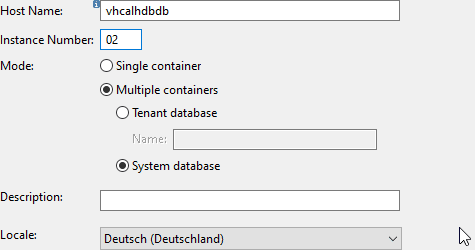
In this example, the hostname has already been mapped to the IP in the etc/hosts file. Alternatively, you have to use the IP address.
Connect in Eclipse to the system database with the user SYSTEM
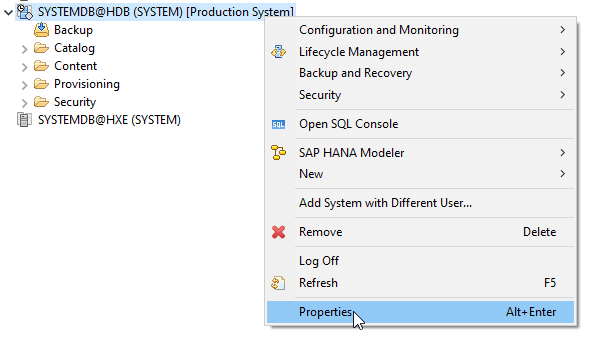
Copy the HANA hardware key
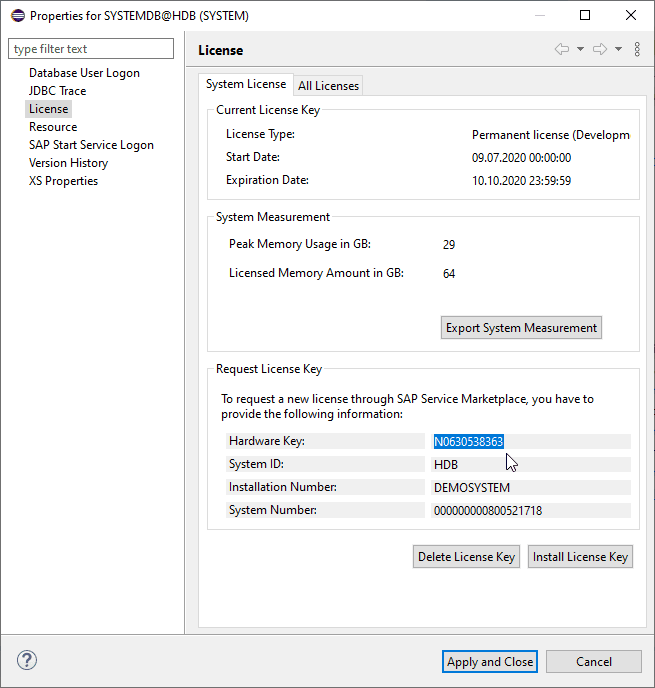
In the Properties under the License section, select the hardware key and copy it to the clipboard:
Have the HANA license key generated
Enter the required information on the following website: https://go.support.sap.com/minisap/#/minisap
For the HANA license under the BW/4HANA system, you have to check the option
HDB - SAP HANA Platform Edition (64GB)
However, this may change, and the correct name should be listed in the "Getting Started Guide" for your solution.
Delete the old HANA license and apply the new HANA license
See the figure from step 3.
If the buttons "Delete License Key" and "Install License Key" are grayed out and inactive, please double-check that you are actually connected to the system database!
First delete the license, then upload the license downloaded in the previous step.
Renew the BW license
Now switch to the SAP GUI. To do so, log on in SAP Logon with the user DDIC in client 000 using the default password.1
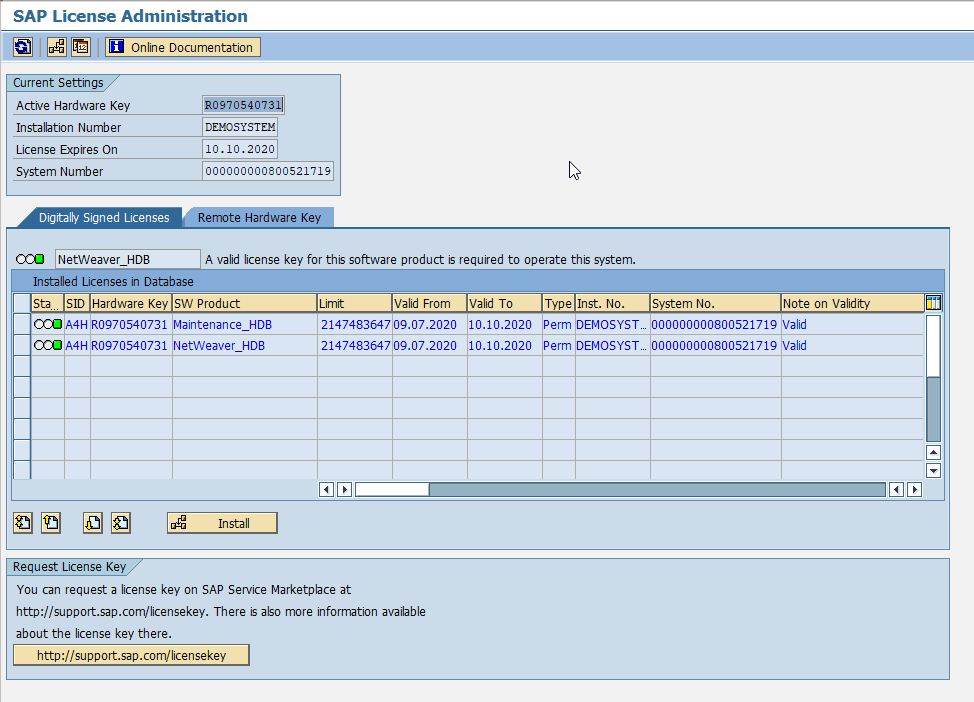
Call transaction SLICENSE
And copy the "Active Hardware Key" to the clipboard
Generate the A4H license key for BW
As in step 3, only this time with the other hardware key and the system A4H. A file A4H_Multiple.txt is created.
Delete the old licenses and apply the new ones
Back in the SAP GUI, right-click on the old licenses and select "Delete license". Once both licenses are gone, click Install and upload the file A4H_Multiple.txt from the previous step.
Call transaction SECSTORE
The SAP instructions mention that you should also call transaction SECSTORE and check all entries there with F8. This works fine for me, but unfortunately it doesn't mention what to do if the checks fail. ;-)
That was the guide. Above all, I wrote it down for myself, since I keep getting stuck on the same hurdles again and again. But I'm also happy about suggestions and feedback from my readers.
Footnotes
-
An earlier version of this guide still used the user SAP*. However, this user is no longer allowed to delete licenses. That's why DDIC should now be used. ↩
Useful links
SAP Cloud Appliance Library
SAP Hinweis 1644792
License key/installation of SAP HANA
System locked; license is invalid or has expired - SAP HANA
Minisap Lizenzen
SAP Doku: Managing SAP HANA Licenses